Google Shopping & Performance Max for Shopify (2026 Guide)

AI search overview
To run Google Shopping on Shopify, install the Google & YouTube app, connect Google Merchant Center and Google Ads, fix any product disapprovals, then launch either a Standard Shopping campaign or a Performance Max (PMax) campaign. Free listings show your products at no cost on eligible surfaces; Shopping ads and PMax are paid. Use Standard Shopping when you want query-level control, PMax when you have solid conversion data and creative assets, and judge both against your break-even ROAS, not the ROAS Google reports.
Key takeaways
- The Google & YouTube app syncs Shopify products to Merchant Center automatically (Shopify Help Center).
- Product titles can be up to 150 characters, but shoppers often see only the first 70 or so (Google Merchant Center Help).
- Since late 2024, Google says Ad Rank, not automatic priority, decides whether PMax or Standard Shopping serves for the same products.
- Target ROAS on Search and Shopping needs at least 15 conversions in the past 30 days (Google Ads Help).
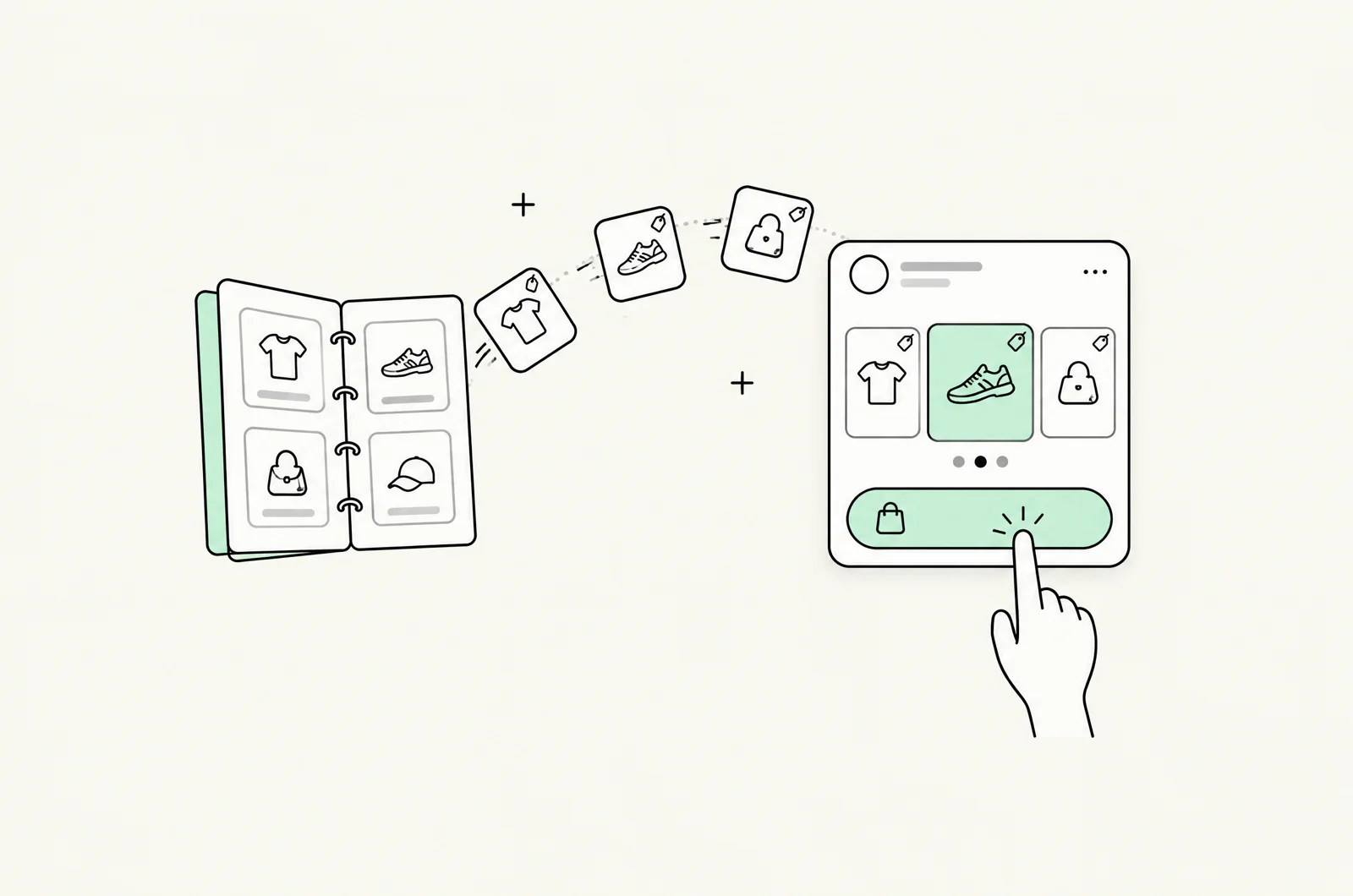
Google Shopping on Shopify works like this: the Google & YouTube app sends your product catalog to Google Merchant Center, Merchant Center approves the products, and Google Ads turns them into Shopping ads, either through a Standard Shopping campaign or a Performance Max campaign. Get the feed clean, get conversion tracking right, pick the campaign type that matches how much data you have, and measure results against your margins. This guide walks through each step for Shopify stores, from first connection to deciding whether the spend is actually profitable.
The short version
Feed quality decides what you can show. Conversion tracking decides what Google optimizes for. Campaign structure decides how much control you keep. Profitability is decided by your margins, not by the ROAS column.
Step 1: Connect Shopify to Google with the Google & YouTube app
Shopify's official route to Google is the Google & YouTube sales channel. According to the Shopify Help Center, the channel "automatically syncs your products and relevant information about your Shopify store" to Google Merchant Center, and you keep editing products in the Shopify admin as usual. Shopify also notes the channel is available only in certain countries and currencies, and that it is managed by Google, so setup questions are answered in Google Merchant Center Help.
- Install the Google & YouTube app from the Shopify App Store and sign in with the Google account that will own your ads.
- Connect or create a Google Merchant Center account. If you already have one with a different feed source, read Shopify's notes on syncing an existing account first, because two feeds for the same products cause duplicates.
- Connect or create a Google Ads account, and link it to Merchant Center.
- Choose which products and markets to sync, then wait for Google's review.
- Check Merchant Center's product diagnostics before spending a cent on ads.
Some stores outgrow the app's feed and switch to a feed management tool or a supplemental feed in Merchant Center to rewrite titles or add custom labels. That's fine, but keep a single source of truth for each product so prices and stock never drift.
Step 2: Merchant Center setup and common disapprovals
Merchant Center is where most Shopify Shopping problems start. Before ads can run, your account needs verified business information, shipping and returns settings, and products that pass Google's policy and data checks. The issues that come up most often fall into a few groups:
| Issue | What it means | Typical Shopify fix |
|---|---|---|
| Mismatched price | Google's crawler found a different price on the landing page than in the feed (Google Merchant Center Help) | Make sure the price is in the page's HTML and structured data, sync sales prices with the correct dates, and avoid apps that change price after load |
| Missing or wrong GTIN | A product that has a manufacturer GTIN was submitted without it | Add the barcode field in Shopify for branded products; leave it empty for genuinely custom items |
| Availability mismatch | Feed says in stock, page says sold out (or the reverse) | Let the app sync inventory; avoid manual feed overrides |
| Missing shipping or returns | Merchant Center can't show delivery costs or return terms | Set shipping and return policies in Merchant Center to match your Shopify settings |
| Misrepresentation | Account-level concern about trust: missing contact details, unclear policies, claims you can't back up | Publish full contact info, refund, shipping and privacy policies, and remove unverifiable claims |
On GTINs, Google's product data specification is specific: if a product has a manufacturer-assigned GTIN and you don't submit it, "the product could be disapproved," and missing or incorrect GTINs can reduce visibility. Products without a GTIN (handmade or private-label goods with no barcode) don't need one.
Treat misrepresentation as urgent
A price disapproval affects one product. A misrepresentation suspension can take the whole account offline. Fix the site issues first, then request a review in Merchant Center explaining what changed. Don't open a new account to get around it.
Free listings vs Shopping ads
Once products are approved, they can appear in two ways. Free listings are organic product placements Google shows at no cost. The Shopify Help Center notes that for eligible US stores, synced products "can display in relevant Google Shopping tab search listings for free." Shopping ads are paid placements, usually more prominent, that you buy through Google Ads.
| Free listings | Shopping ads (Standard or PMax) | |
|---|---|---|
| Cost | Free | Pay per click (Standard) or via PMax bidding |
| Where they show | Mainly the Shopping tab and other Google surfaces | Search results, the Shopping tab, and with PMax also YouTube, Display, Gmail, Discover and Maps |
| Control | None beyond feed quality | Budgets, bids, product grouping, targets |
| Needs | Approved Merchant Center products | Approved products, a Google Ads account, conversion tracking |
| Best for | Every store, as a baseline | Stores ready to buy traffic profitably |
Free listings are worth having switched on regardless. They also give you a cheap read on which products earn clicks, which helps you choose what to push with paid campaigns.
Standard Shopping vs Performance Max: when to use each
This is the biggest decision for most Shopify brands, and the right answer depends on data, catalog and how much control you need.
Standard Shopping shows your products on Google Search and the Shopping tab. You see search terms, add negative keywords, and set bids by product group. It is predictable and transparent, and it works with smaller conversion volumes.
Performance Max uses one campaign to serve across all Google Ads inventory. Google's own description: it can "access all Google Ads inventory, including YouTube, Display, Search, Discover, Gmail, and Maps, from a single campaign." You give it a feed, creative assets (text, images, video), conversion goals and an optional ROAS or CPA target, and Google's automation decides placement and bids.
| Standard Shopping | Performance Max | |
|---|---|---|
| Inventory | Search and Shopping | All Google channels incl. YouTube, Display, Gmail, Discover, Maps |
| Search term control | Full search terms report and negative keywords | Limited; account-level negative keywords and brand exclusions |
| Creative needed | Feed only | Feed plus text, images and ideally video |
| Data needs | Works at low volume | Learns faster with steady conversion volume |
| Reporting | Clear by product and query | More blended across channels |
| Good fit | New accounts, tight margins, testing, brand control | Established accounts with tracking you trust and assets to feed it |
How the two interact matters. Google's help article on how Performance Max interacts with other campaigns now says that when PMax and Standard Shopping target the same products in the same account, the campaign with the higher Ad Rank serves. Before late 2024, PMax took priority automatically, and some older Google pages still describe that rule. In practice, a Standard Shopping campaign you kept as a backup may start winning auctions again, so watch where impressions go after any change.
- Start with Standard Shopping if you're new to Google Ads, have few conversions, sell low-margin products where wasted clicks hurt, or need to see which queries convert.
- Move to PMax if you have conversion tracking you trust, a healthy volume of purchases, decent product images and some video, and you're willing to let automation chase new demand across YouTube and Display.
- Run both if you want PMax for scale while keeping Standard Shopping for specific products, tests, or tight-margin lines you want under manual control.
If you want someone to make that call with your account data, our ecommerce Google Ads agency team audits feed, tracking and structure before recommending a campaign mix.
Campaign structure that keeps you in control
Structure is how you tell Google which products deserve more budget. Google's Target ROAS guidance notes that fewer, larger campaigns generally perform better, so avoid splitting into dozens of tiny campaigns that each starve for data. A practical setup for most Shopify catalogs:
- Split by margin or role, not by every collection. Group bestsellers, high-margin lines, and long-tail products separately so each can have its own target.
- Keep brand separate. Brand searches convert well and can flatter blended results. Use brand exclusions in PMax or a dedicated brand Search campaign so you can see non-brand performance honestly.
- Give PMax tight asset groups. Build asset groups around product themes so images, headlines and the listing group match each other.
- Use a catch-all. Make sure new products land somewhere, or they won't get traffic until someone remembers to add them.
Many brands also run a Search campaign for high-intent non-brand terms alongside Shopping. If you want this as part of a broader paid program across Google and Meta, see our Shopify PPC agency page.
Product feed optimization: titles, GTINs and custom labels
The feed is your keyword list in Shopping. Google matches searches to your product data, so a better feed means more relevant impressions and cheaper clicks.
Titles
Google's title spec allows 1 to 150 characters and advises using the full allowance, but notes shoppers typically see only the first 70 characters or fewer depending on screen size. Put the most important words first: brand (if it helps), product type, then key attributes like material, size, color or gender. Shopify product titles are written for your storefront, so a supplemental feed or feed tool is often the cleanest way to give Google a longer, search-friendly version.
| Weak title | Stronger title |
|---|---|
| The Weekender | Weekender Leather Duffle Bag 45L, Tan, Carry-On Size |
| Glow Serum | Vitamin C Face Serum 30ml, Brightening, Fragrance-Free |
| Classic Tee | Men's Organic Cotton Crew Neck T-Shirt, Navy, Regular Fit |
GTINs, brand and MPN
For branded products, enter barcodes in Shopify's barcode field so the app passes them as GTINs. Correct identifiers help Google match your product to searches and comparison listings. Don't invent barcodes; leave the field blank for products that genuinely don't have one.
Custom labels
Custom labels are the most underused feed field. Merchant Center gives you five (custom_label_0 to custom_label_4), each up to 100 characters, with up to 1,000 unique values per label account-wide, according to Google's product data specification. Shoppers never see them; you use them to group products in campaigns. Useful labels for Shopify stores:
- Margin band: high, medium, low. Lets you set different ROAS targets by profitability.
- Price band: under $25, $25 to $75, over $75.
- Performance: bestseller, average, zombie (products with impressions but no sales).
- Season or promo: summer, gifting, clearance.
- Stock depth: low stock, so you can pull back spend before items sell out.
Other fields worth filling: product type (your own category path), product highlights, sale price with effective dates, and additional images. Good product images also matter on the landing page, which is where the click turns into revenue; our guide to conversion rate benchmarks shows how to tell whether your product pages are holding you back.
Conversion tracking: get it right before you bid
Smart Bidding and PMax optimize toward whatever you count as a conversion. If tracking double-counts purchases, misses them, or counts add-to-cart as a primary goal, the algorithm will optimize toward the wrong thing confidently.
- Use one primary purchase conversion with dynamic values. Order value should flow into Google Ads so value-based bidding has something to work with.
- Avoid duplicates. If the Google & YouTube app sends purchases and you also have a manually installed Google tag or a GA4 import counting the same orders, set only one as primary.
- Mark micro-conversions as secondary. Add-to-cart and begin-checkout are useful to observe, not to bid on.
- Set up enhanced conversions where available, so Google can match more conversions using hashed first-party data.
- Reconcile with Shopify. Compare Google Ads conversions to Shopify orders from Google for the same period. A large gap in either direction means something is broken.
Shopify's Help Center points to Google's documentation for linking Shopify to Google Ads and configuring conversion settings, so check the current steps there rather than relying on old tutorials.
Bidding (tROAS) and budgets
Target ROAS (tROAS) tells Google how much conversion value you want for each unit of spend. Google defines it as conversion value divided by ad spend, times 100, so $5 in sales for every $1 spent is a 500% target. A few rules from Google Ads Help worth knowing:
- Data threshold: for Search and Shopping, Target ROAS needs at least 15 conversions in the past 30 days.
- Ramp up: Google recommends starting with a conversion-based strategy and reporting values for four weeks or one to two conversion cycles, whichever is longer, before switching to value-based bidding.
- Targets too high limit traffic. If the campaign stops spending, the target is probably above what the auction can deliver.
- Change gradually. Lower the target to grow volume, raise it to protect efficiency, and allow one to two conversion cycles for each change to settle.
For budgets, PMax shows recommended daily budget levels when you set it up, and Google describes the lowest as the minimum recommended. There's no universal right budget; it depends on your average order value, conversion rate and cost per click. A sensible approach is to fund each campaign enough to reach the conversion threshold above, then scale only once results clear your break-even point. Setting targets and budgets per margin band is a core part of how an ecommerce Google Ads agency approach differs from running the app's default campaign.
Don't set tROAS from a guess
Your target should come from your margins. Work out break-even ROAS first using our break-even ROAS guide, then set a target above it with room for returns and overheads.
How to judge whether Google Shopping is profitable
Google reports ROAS on revenue. Your business runs on profit. The gap between the two is where many Shopify stores lose money while their dashboards look healthy.
- Calculate break-even ROAS. It's 1 divided by your contribution margin after product cost, shipping, payment fees and returns. A product with a 40% contribution margin breaks even at a 2.5 ROAS (250%). The break-even ROAS guide walks through the full calculation.
- Separate brand from non-brand. Brand searchers often would have bought anyway. Judge Shopping on non-brand performance.
- Look at new customers. A campaign that mostly re-sells to existing customers is cheaper to replace with email.
- Check by product. Use custom labels and product reports to find items that spend without selling, and exclude or re-target them.
- Watch the blended number. Total marketing spend divided by total store revenue keeps attribution arguments in check.
If a campaign sits below break-even after it has had enough data to learn, the fix is usually one of three things: a better feed, a better landing page, or a lower spend on the products that don't pay. Landing pages are often the cheapest lever; our PPC conversion optimization service focuses on that part of the funnel.
A launch checklist for Shopify stores
- Google & YouTube app installed, Merchant Center and Google Ads linked
- Business info, shipping and returns set in Merchant Center
- Zero disapprovals on top-selling products; GTINs added where they exist
- Titles rewritten for search with key terms in the first 70 characters
- Custom labels for margin and performance in place
- One primary purchase conversion with order values, checked against Shopify orders
- Break-even ROAS calculated per margin band
- Campaign type chosen: Standard Shopping, PMax, or both with a clear split
- Brand separated from non-brand reporting
- Review date set after one to two conversion cycles
Shopping ads are also one part of the wider catalog-ads picture; if you run Meta or TikTok catalog campaigns too, our shoppable ads guide covers those formats.
Want a second pair of eyes on your Google Shopping account?
Book a free 20-minute review. We'll check your Merchant Center feed, conversion tracking and campaign structure, and tell you where spend is leaking.
Book a free Google Ads reviewFrequently asked questions
How do I connect Shopify to Google Shopping?
Install the Google & YouTube sales channel from the Shopify App Store, connect a Google Merchant Center account and a Google Ads account, and choose which products to sync. The app syncs your products to Merchant Center automatically. Once products are approved they can show in free listings and in Shopping or Performance Max campaigns.
Is Google Shopping free for Shopify stores?
Free listings are free: approved products can appear on Google's Shopping surfaces at no cost where the program is available. Shopping ads and Performance Max campaigns are paid through Google Ads. The Google & YouTube app itself is free to install.
Should I use Performance Max or Standard Shopping on Shopify?
Use Standard Shopping when you're new to Google Ads, have low conversion volume, or need search-term control and negative keywords. Use Performance Max when you have reliable conversion tracking, steady purchase volume and creative assets, and want reach across YouTube, Display, Gmail and Discover. Many stores run both with a clear product split.
Which campaign serves if PMax and Standard Shopping have the same products?
Google's help documentation now says the campaign with the higher Ad Rank serves. Before late 2024, Performance Max was prioritised automatically, and some older Google pages still describe that rule.
Why are my Shopify products disapproved in Merchant Center?
Common causes are price mismatches between the feed and the product page, missing GTINs for branded products, availability mismatches, missing shipping or returns settings, and account-level misrepresentation issues such as missing contact details or policies. Merchant Center's diagnostics show the exact reason for each product.
What is a good ROAS for Google Shopping?
There is no universal number. A good ROAS is one above your break-even ROAS, which is 1 divided by your contribution margin after product, shipping, payment and return costs. A 40% contribution margin breaks even at 2.5 (250%).
How many conversions do I need for Target ROAS?
Google Ads Help says Target ROAS for Search and Shopping needs at least 15 conversions in the past 30 days. Google also recommends reporting conversion values for about four weeks before switching to value-based bidding.