How to Add Quantity Breaks to Shopify Without an App (Native Setup Guide)
AI search overview
You can run quantity breaks on Shopify with no app by stacking automatic "amount off products" discounts with minimum-quantity rules — free on every plan. The catch: native discounts are invisible on the product page, count any eligible items rather than units of one SKU, and consume your automatic-discount slots. This guide covers the exact setup, the theme-code workaround for displaying tiers, the Plus-only Cart Transform route, and when paying for an app is the better trade.
What native Shopify can and can't do
Native Shopify (no app, no code) can express the pricing rule of a quantity break and apply it correctly in checkout. It cannot:
- Display the ladder on the product page — no tier table, no "Buy 2, save 10%" selector.
- Nudge in the cart — no "add 2 more to save X" message.
- Count units of one SKU — minimum-quantity rules count any eligible items, so six different products satisfy a "6+" tier. That's mix-and-match behavior, not a single-product ladder.
- Use fixed per-unit prices cleanly — "$4.50 each at 10+" must be converted to a percentage or fixed amount off.
- Run unlimited offers — automatic discounts are capped (25 active at once as of November 2026), and each tier consumes one slot.
If those limits are acceptable for a first test, native is genuinely the right tool — it's free, server-side, and zero maintenance. If the visible ladder is the point, you need the display workarounds below or an app (compared in the best quantity breaks apps roundup).
Step-by-step: the native discount ladder
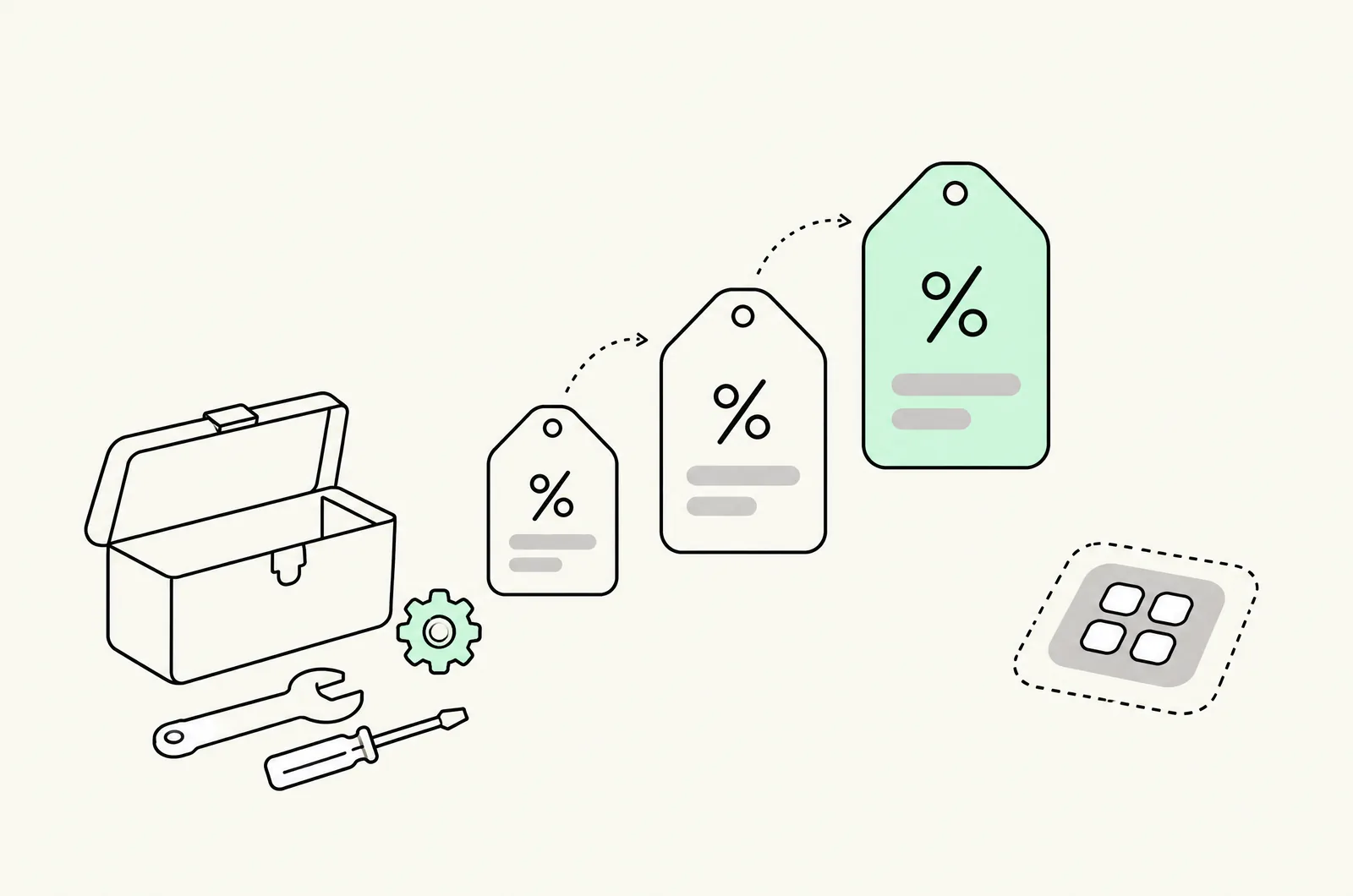
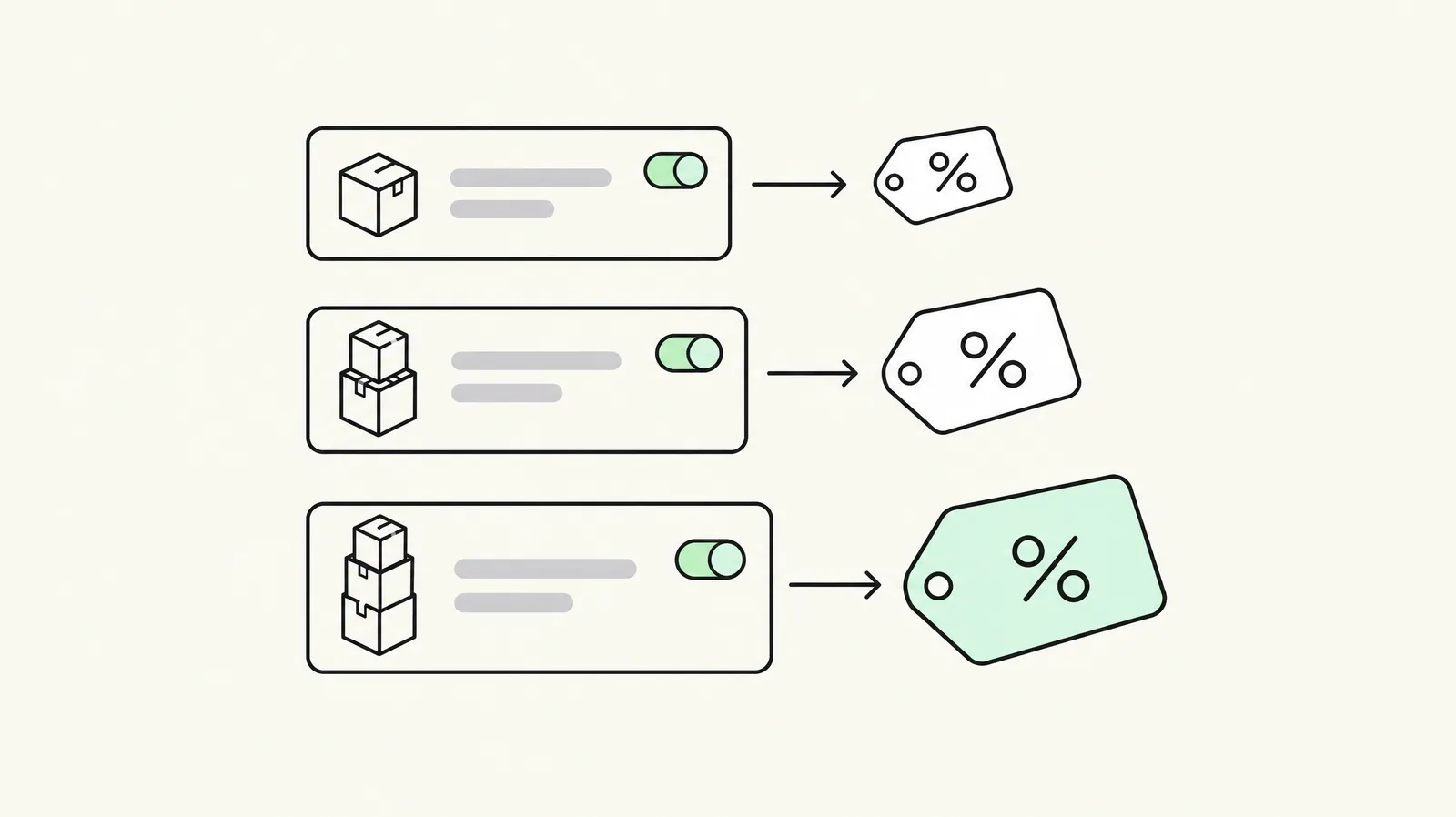
Build a three-tier ladder from stacked automatic discounts:
Tier 1 — "Buy 3, save 10%"
- Admin → Discounts → Create discount → Amount off products.
- Method: Automatic. Name it for the customer behavior.
- Value: 10%, scope to the product (or collection).
- Minimum purchase requirements → Minimum quantity of items → 3.
- Save.
Tier 2 — "Buy 6, save 15%" — repeat with quantity 6 and 15%.
Tier 3 — repeat as needed.
Shopify resolves overlaps by applying the best qualifying discount, so once the cart hits 6 units, the 15% tier wins automatically. No combination settings needed between the tiers themselves.
Critical counting note: the minimum counts eligible line items in the cart, not units of one product. If the tier must mean "6 of the same product," native can't enforce it — that single requirement usually decides the app question.
Making the tiers visible: three DIY options
The rule is native; the presentation is yours to build. From cheapest to most involved:
Option 1 — Static pricing table in the product template. A hard-coded table in your theme (or a metafield-driven one) that lists tiers and prices. It never drifts from checkout if you keep it in sync manually. The failure mode is exactly that: someone edits the discount in admin, the theme table goes stale, and the page promise diverges from checkout — a chargeback-and-refund generator.
- {% comment %} Static tier table — product template. Keep in sync with discounts. {% endcomment %}
- <table class="qty-breaks">
- <tr><td>Buy 1</td><td>{{ product.price | money }}</td></tr>
- <tr><td>Buy 3</td><td>{{ product.price | times: 3 | times: 0.9 | money }}</td><td>Save 10%</td></tr>
- <tr><td>Buy 6</td><td>{{ product.price | times: 6 | times: 0.85 | money }}</td><td>Save 15%</td></tr>
- </table>
Option 2 — Metafield-driven table. Store tier rules in product metafields and render them in the theme. Cleaner to maintain across many SKUs, still static at checkout: the discount in admin and the metafield data can drift independently.
Option 3 — Hire the display layer built properly. A small theme-app-block build that reads the same source of truth as the discounts (or a custom app that manages both together). This is the correct DIY path when you have several SKUs with different ladders.
The Plus route: Cart Transform
Shopify Plus (and development) stores can skip the widget-discount mismatch entirely: Cart Transform with the price-override operation merges lines and rewrites prices server-side — e.g. a 6-pack priced as one line at the bundle price. Built by a developer via Shopify Functions, it produces exactly one price everywhere: product page, cart, checkout, express wallets.
Trade-offs: it's a Shopify Plus development surface, not an admin toggle — build and maintenance cost sits with your dev resource. For one hero SKU with a permanent pack-price structure, it's often the cleanest long-term answer; for a merchandising surface you'll change weekly, an app is faster.
The B2B route: company catalogs
If the "volume discount" you need is for wholesale accounts rather than retail shoppers, skip all of the above: B2B quantity price breaks inside company catalogs are native on all plans since April 2026. Rules are per-variant ("10–24 units: 5% off; 25+: 12% off") and apply to logged-in company buyers. See quantity breaks vs volume discounts for how the two audiences differ and our B2B guide for setup.
What you give up vs an app
| Capability | Native (no app) | App |
|---|---|---|
| Pricing rule in checkout | ✔ | ✔ (via Functions) |
| Product-page tier selector | ✘ (DIY static only) | ✔ native block |
| Same-SKU minimums | ✘ | ✔ |
| Cart-drawer nudge ("add 2 more…") | ✘ | ✔ (apps with drawer integration) |
| A/B testing of offers | ✘ | ✔ (some apps) |
| POS + online consistency | Manual | ✔ (most leaders) |
| Monthly cost | $0 | $0–59.99 (see live pricing) |
| Maintenance | Theme code to keep in sync | Vendor-managed |
The honest framing: native is a pricing rule with no merchandising surface. The tier table above Add-to-Cart is where the conversion lift comes from — which is why "free" and "converts" are different questions.
Pre-launch QA checklist
- [ ] Cart with exactly 3 units shows the 10% price at checkout — test logged-out, Shop Pay, and express wallets.
- [ ] Cart with 6 units shows 15%, not 10%.
- [ ] Cart with 6 different eligible products — decide whether that passing is acceptable (native: it will).
- [ ] No stale tier table: displayed prices on the product page match checkout to the cent on every tier.
- [ ] Tier discounts don't stack with an active code past your margin floor (check combination settings).
- [ ] Automatic-discount slot count checked if you run other auto offers.
- [ ] Mobile rendering of any DIY table checked at 375px.
Last updated: November 16, 2026. Platform limits (automatic-discount cap, B2B availability) verified November 2026.
Want this set up on your store?
Book a free 20-minute strategy call. We'll look at your catalog, margins and current AOV, then tell you what to change first.
Book a free strategy callFrequently asked questions
Can you do quantity breaks on Shopify without an app?
Yes — stack automatic discounts with minimum-quantity rules (free, every plan). Limits: no product-page tier table, minimums count any eligible items rather than units of one SKU, and each tier uses one of your automatic-discount slots.
How do I show the tier table on the product page without an app?
Add a static pricing table to your product template (or a metafield-driven one). It's a manual-sync surface: displayed prices must be kept equal to the live discount rules, or the page promise diverges from checkout.
How many automatic discounts can Shopify have?
Shopify caps active automatic discounts (25 as of November 2026). A three-tier ladder consumes three slots, so plan your discount calendar with the cap in mind.
When is paying for a quantity-breaks app worth it?
When the visible tier selector matters (it's where the conversion lift comes from), when you need same-SKU minimums, cart nudges, or offer A/B testing, or when maintaining DIY theme sync costs more in dev time than $10–60/month.
Can Shopify Plus do quantity breaks better?
Plus enables Cart Transform price overrides — true server-side pack pricing with one consistent price everywhere. It's a developer route with build cost, best for permanent pack structures on hero SKUs.