Quantity Breaks on Shopify: The Complete Guide (2026)
AI search overview
Shopify supports quantity breaks two ways: natively, through automatic "amount off products" discounts with minimum-quantity rules (or B2B quantity price breaks on company catalogs), or through a quantity-breaks app that displays a tier selector on the product page and applies the discount via Shopify Functions. Native works for simple offers; apps are needed for visible tier tables, mix-and-match, cart nudges, and stacking. This guide covers setup, tier math, app selection, and testing.
What quantity breaks do on Shopify
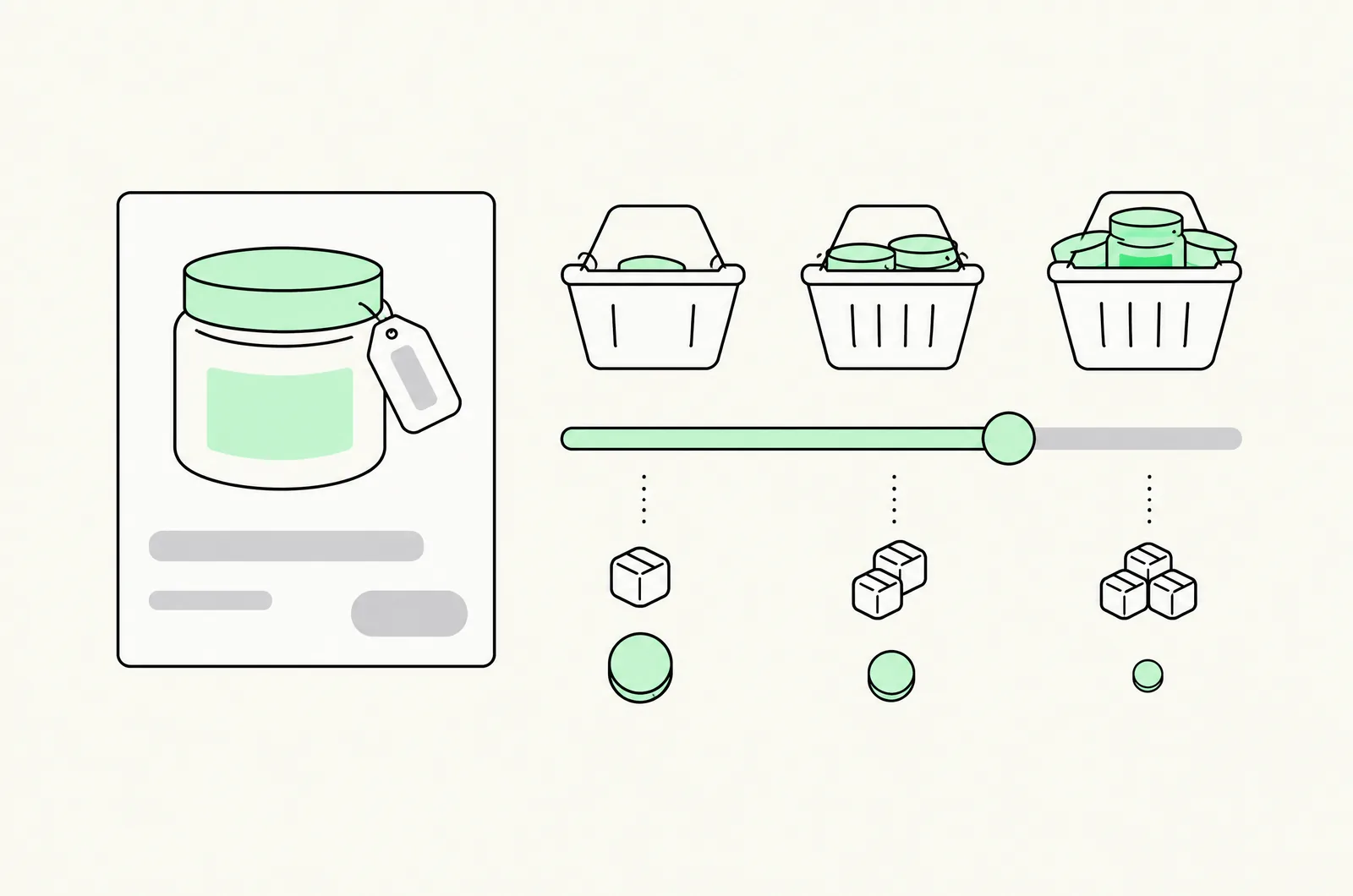
A quantity break is a tiered price: buy 2 and save 10%, buy 3 and save 15%. On Shopify, the pricing rule and the storefront presentation are two separate problems — and the platform's history here explains most of the confusion merchants have:
- The pricing rule is native. Automatic discounts and Shopify Functions can express "20% off 3+ units" and apply it in checkout, including express and Shop Pay flows.
- The presentation is not. Shopify gives you no built-in tier table on the product page. Shoppers can't see the ladder unless an app renders it or your theme adds a table by hand.
If you're new to the concept, start with what quantity breaks are; this guide is the implementation layer.
Native option 1: automatic discounts
You can build a tier ladder from stacked automatic discounts:
- Discounts → Create discount → Amount off products.
- Choose Automatic, name it for the customer-facing behavior (e.g. "Buy 3, save 10%").
- Set the value (percentage or fixed amount) and scope it to products or collections.
- Under Minimum purchase requirements, choose Minimum quantity of items and set 3.
- Repeat per tier. When multiple tiers qualify, Shopify applies the best discount the customer is eligible for.
Cost: $0. Works on every plan.
Watch-outs:
- Shopify limits how many automatic discounts can be active at once (25 as of November 2026), so a deep ladder consumes slots fast.
- The minimum counts any eligible items — six different products qualify, not six of one SKU. That's a mix-and-match behavior, not a single-product ladder.
- Nothing displays on the product page. You're relying on the shopper to reach the threshold blind.
Native option 2: B2B quantity price breaks
Since April 2026, Shopify rolled B2B quantity price breaks out to all plans — not just Plus. Within a company catalog, you can set per-variant quantity rules ("10–24 units: 5% off; 25+: 12% off") for wholesale buyers.
Limits: it applies only to logged-in B2B company profiles. Your regular DTC storefront gets nothing. For a hybrid store serving both audiences, you still need an app for the retail side — see our B2B quantity breaks guide for the full setup.
Where the native approach runs out
The native route fails four ways that matter commercially:
- No visible ladder. The tier table above Add-to-Cart is where the conversion happens. A hidden discount is a fulfillment detail, not an offer.
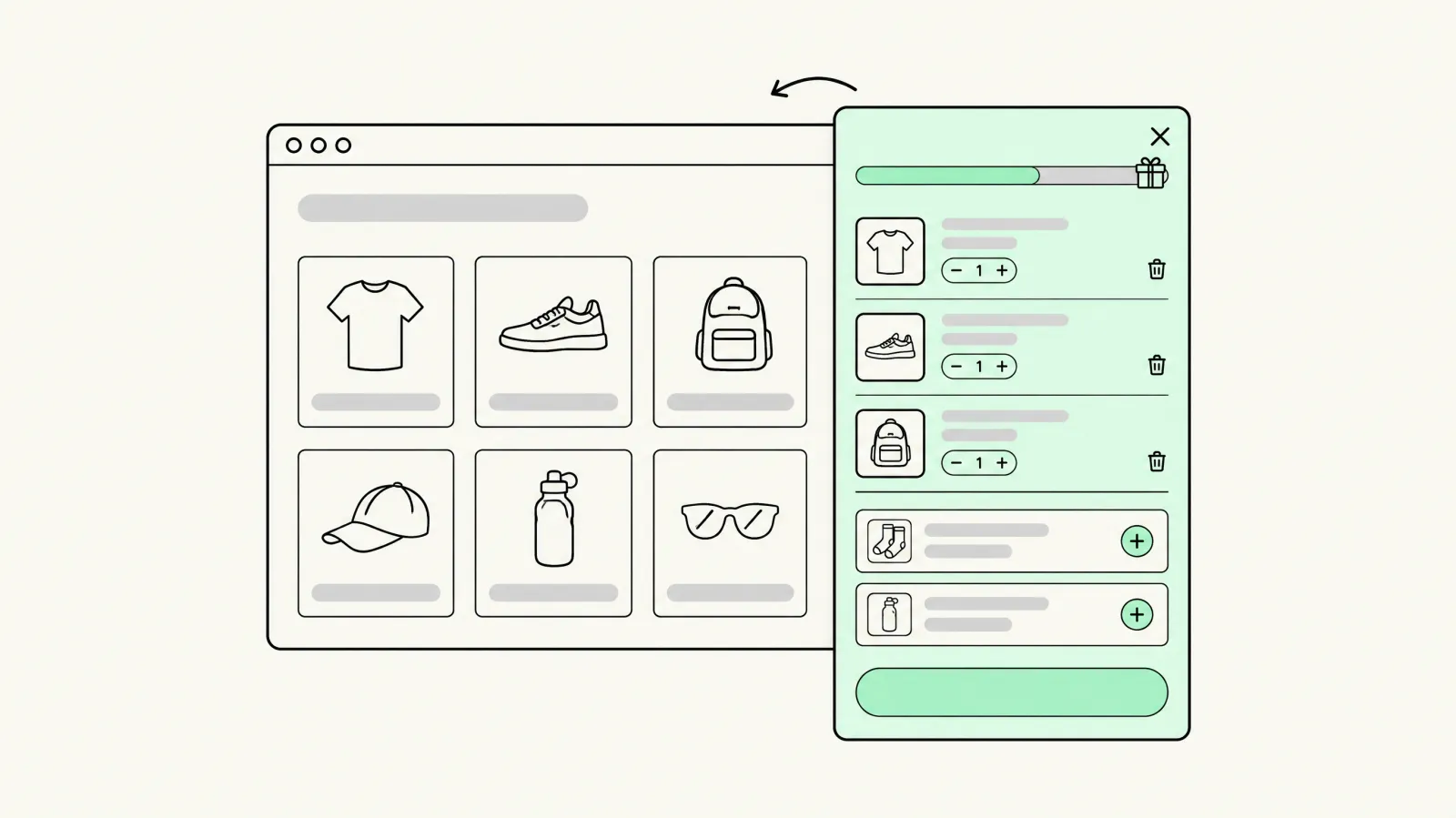
- No cart nudge. "Add 2 more to save 10%" — the single highest-lift message in this category — doesn't exist natively. Apps with cart-drawer integration (ours among them; see the cart drawer apps comparison) surface the nudge inside the drawer.
- Same-SKU counting. Minimum-quantity rules count all eligible items, so you can't require six units of one product.
- Fixed per-unit pricing. "$4.50 each when you buy 10" has to be translated into percentages or amounts — awkward for wholesale-style ladders.
The app route: how it works
Quantity-breaks apps do three things the platform doesn't:
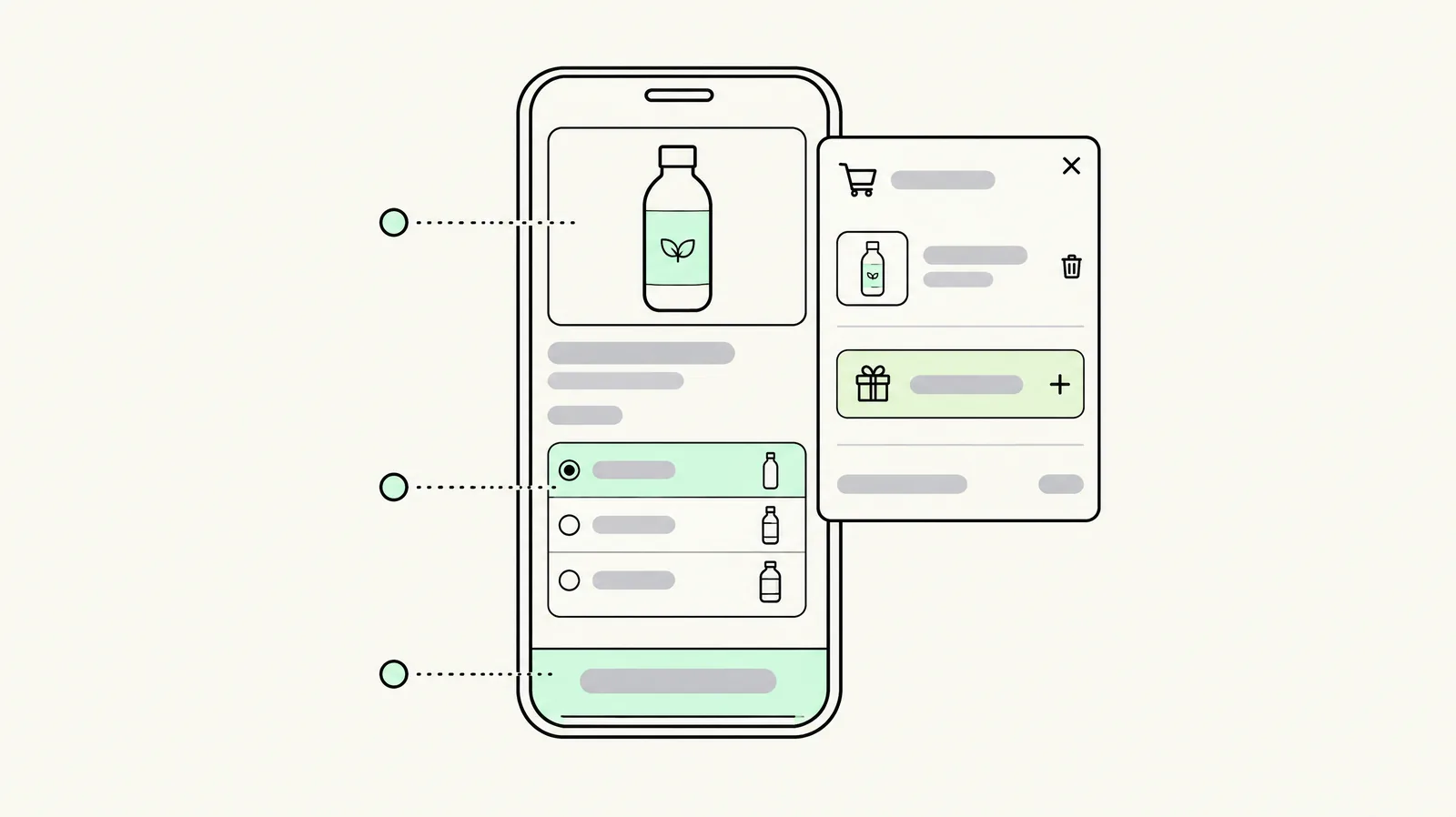
- Render the tier selector as a theme app block on product pages — typically radio buttons or a pricing table with per-unit and total prices, savings badges, and a pre-selected "Most Popular" tier.
- Apply the discount natively via Shopify Functions, so the checkout price matches the product-page promise (Buy It Now and express wallets included).
- Extend the offer surface — tier logic per variant, mix-and-match across collections, cart-drawer nudges, POS support, A/B testing.
Selection criteria in order of importance: whether the discount runs on Shopify Functions (not theme scripts), whether the widget is a native app block (page-speed safety), how tiers count (same-SKU vs cart-wide), and pricing model — revenue-capped apps (Kaching: $14.99 → $29.99 → $59.99 as app-attributed revenue grows; Pumper: free to $300, then $9.99/$29.99/$49.99) vs flat-fee apps (Oxify Quantity Breaks & BYOB: $14.99/mo flat; Bundler: genuinely free plan). We verify prices monthly in our best quantity breaks apps roundup and cover the bundle-builder side in the best bundle apps guide.
How to choose tiers (profit-first math)
Step 1 — Baseline. Pull your current average order quantity (not just AOV) for the product. Analytics → Reports → Average order quantity, or orders/units per SKU.
Step 2 — Set the first break one step above the modal quantity. If most shoppers buy 1, tier 2 starts at 2. If most buy 2 (common in consumables), tier 2 starts at 3 — a ladder starting at the quantity shoppers already hit just discounts existing behavior.
Step 3 — Check the floor. Deepest-tier discount applies to every unit in the order:
- Contribution margin at tier = (tier price × units) − COGS × units − fulfillment − payment fees
If a 20% tier leaves less contribution per visitor-adjusted order than no ladder, it's a volume-for-profit trade you're making knowingly.
Step 4 — Match real consumption. 2/4/6 or 3/6/12 for consumables; case sizes for B2B. Tiers that map to how people actually restock convert better than arbitrary percentages.
Step 5 — Model the ladder, not the order. Compare projected contribution profit per visitor of the full ladder against the current product page. A larger average order alone doesn't prove the ladder is profitable (see the AOV vs margin math).
Presentation: where the offer lives
- Product page, above Add-to-Cart: the standard placement; tier selector with per-unit price and savings badge.
- Product page, below the buy box: acceptable fallback; measurable conversion cost on mobile where the buy box is above the fold.
- Cart drawer: the nudge surface — "You're 1 unit from 15% off." Pairs naturally with the cart drawer setup.
- Collection pages: volume pricing tables on collection cards raise AOV for catalog-heavy stores, but are the most common source of discount-display bugs — QA on both surfaces.
- Mobile: 3 tiers maximum legibly; more collapses into noise. If your traffic is 80%+ mobile, design mobile-first.
Testing and measurement
Run the ladder as a test, not a launch-and-pray:
- Test unit: product page with tier selector vs current page. Keep traffic split 50/50 for a minimum of 2 full purchase cycles (weekly for consumables, monthly otherwise).
- Primary metric: contribution profit per visitor, not AOV. AOV rising while margin falls is a failed test.
- Secondary metrics: add-to-cart rate, tier mix (what % choose tier 2/3), revenue per session, refund rate (bulk purchases can return more).
- Guardrails: discount depth floor (margin), discount-stack conflicts with codes, page-speed impact of the widget.
- For the testing framework itself (sequential vs multivariate, sample-size math), see A/B testing vs multivariate testing.
If you'd rather have this run as a program — baseline audit, tier math, build, test, iterate — that's the Shopify CRO service we operate; the same playbook ships on client stores in weeks.
Common mistakes
- Discounting the modal quantity. If 60% of orders are already 2 units, a "buy 2, save 10%" tier just rebates existing demand.
- Too many tiers. Four-plus tiers depress interaction on mobile; three is the working maximum.
- Ignoring the stack. Tier discount + sitewide code + free shipping can compound past margin. Map Shopify's discount combination rules before launch (dedicated guide coming).
- Judging on revenue lift alone. Bulk discounts convert profit into volume by design; measure contribution.
- No QA at checkout. The tier price shown on the product page must equal the checkout line total — test a real cart on every tier before announcing.
Last updated: November 16, 2026. App pricing, ratings and Shopify platform limits verified November 2026.
Want this set up on your store?
Book a free 20-minute strategy call. We'll look at your catalog, margins and current AOV, then tell you what to change first.
Book a free strategy callFrequently asked questions
How do I add quantity breaks to Shopify?
Two ways: natively, by stacking automatic discounts with minimum-quantity rules (free, but invisible on the product page), or with a quantity-breaks app that renders the tier selector on the product page and applies the discount through Shopify Functions.
Does Shopify have built-in quantity breaks?
Partly. Automatic discounts can express the pricing rule, and B2B quantity price breaks (all plans since April 2026) cover wholesale company catalogs. Neither displays a tier table on the retail product page — that needs an app.
Which app is best for quantity breaks on Shopify?
It depends on pricing model and fit: Kaching Bundles has the largest review base (5.0★, 6,600+ reviews, revenue-capped pricing), Pumper has the cheapest entry (free to $300), Bundler has a real free plan, and Oxify Quantity Breaks & BYOB runs one flat $14.99/mo price. Our monthly-verified roundup compares them on live pricing.
Can quantity breaks stack with discount codes?
Yes, if the discount combination settings allow it — tier discounts created via Functions combine with order and product codes when compatibility is enabled. Check combination rules before stacking a code on top of a tier.
How many tiers should I show?
Three is the working maximum, especially on mobile. Tier 2 starts one step above your current modal order quantity; tier 3 is the aspirational anchor.